
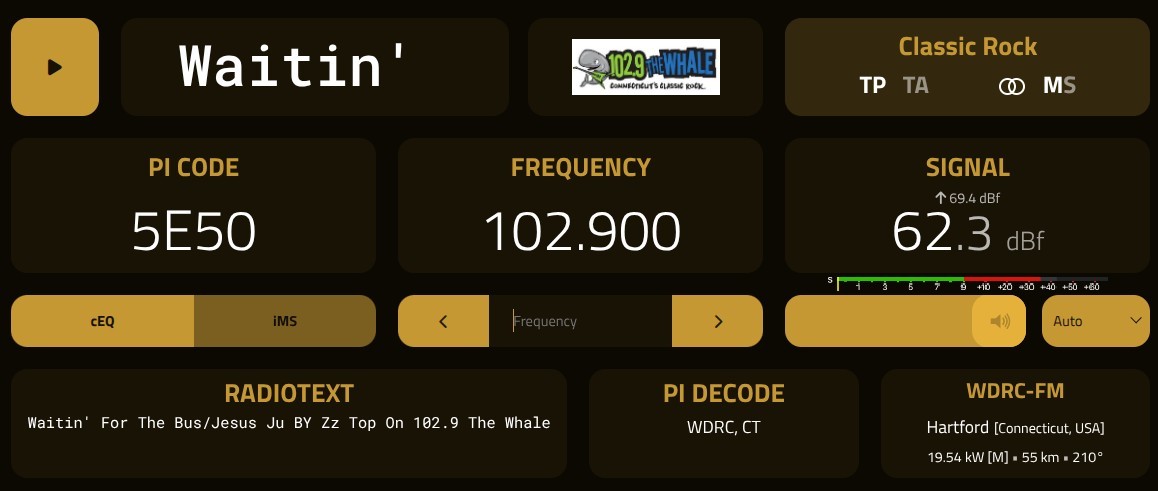
You Can Put a Webserver Online!
This short article should help
This guide will walk you through the steps to install fm-dx-webserver on a Linux-based system. Your radio should be connected to the computer/laptop before you begin. Use the cable that came with your smartphone. Plug it into the radio and connect it to a USB port on your laptop. Get an audio cable and connect it from the radio’s headphone jack to the mic input on your laptop. Running your volume up too high will cause the webserver’s audio to be loud and distorted. Go easy on the volume. Now let’s do the installation. Part one through three pertain to both linux and windows users since it involves your router settings.
Part One. Before you even start doing this, make sure you have a static IP address. The internet is running out of IP addresses and many ISPs are giving out dynamic IP addresses to their customers. That’s what my ISP is doing and I didn’t know it. Save yourself some grief later on and find out, because if you your IP address turns out to be dynamic, you will not be able to configure port forwarding and your efforts will all be for nothing. Some ISPs (like mine) offer static address for an extra charge. Some don’t. There are options like port tunneling, but these are more involved and don’t go that route unless you really have to.
Part Two. You need to go into your router settings and check for CGNAT. What is CGNAT? It allows a large number of the ISP’s customers (subscribers), each with a private IP address, to share a single public IPv4 address when connecting to the broader internet.
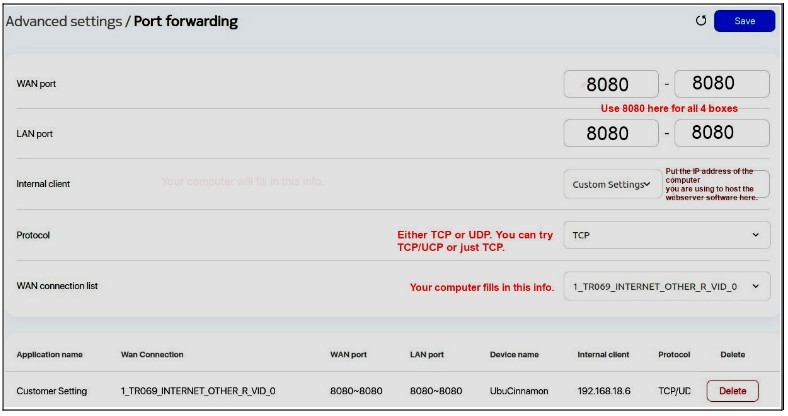
Part Three. Next you need to set up port forwarding and for this you need to go into your router settings. Find your list of devices using your network and write down the IP address for the computer you will use as your webserver. Then look around more and find port forwarding. Mine is under Nokia advanced settings. When you find it, it’ll look like this, more or less.
Part Four. You now have port forwarding set up, so you can now install the software on your laptop or computer.
Here we separate into Windows and Linux users. I’m using Linux, so this is what I do to install the webserver on my laptop.
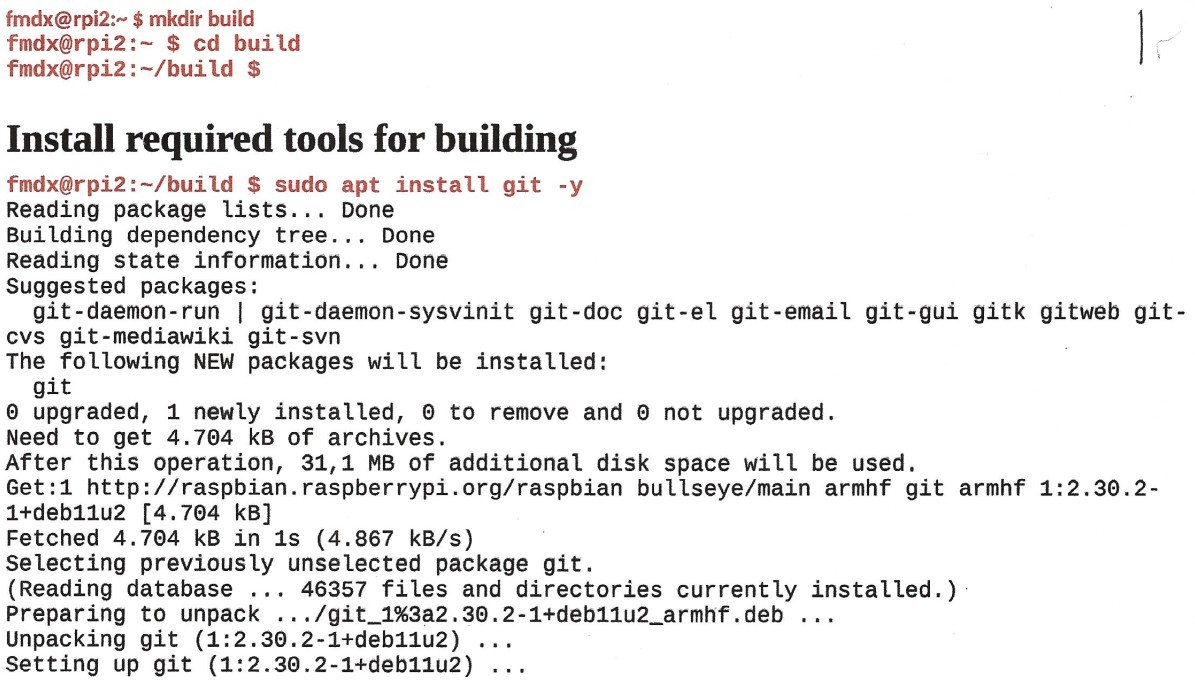
Open up your terminal. The first thing you have to do is make a directory called build in your home directory. Type the lines in red, one at a time. (type mkdir build, cd build and build $ ). Do not type fmdx@rp12 ever. The lines in black show you the result of the lines typed in red.
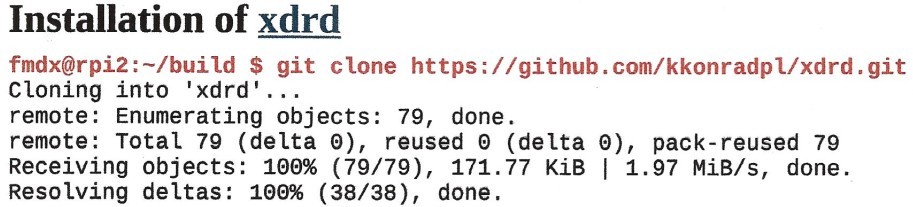
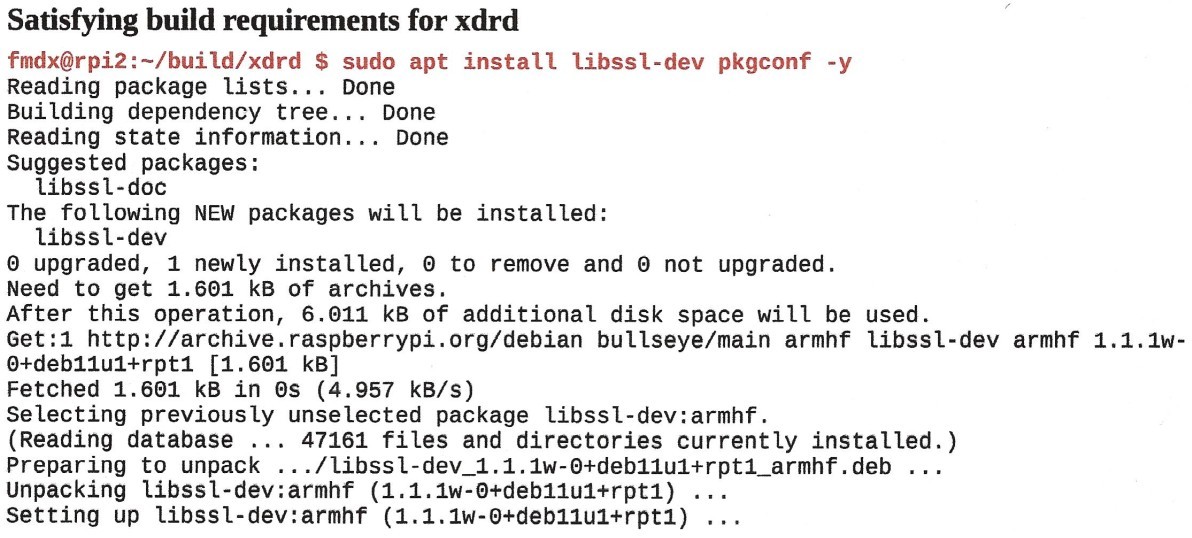
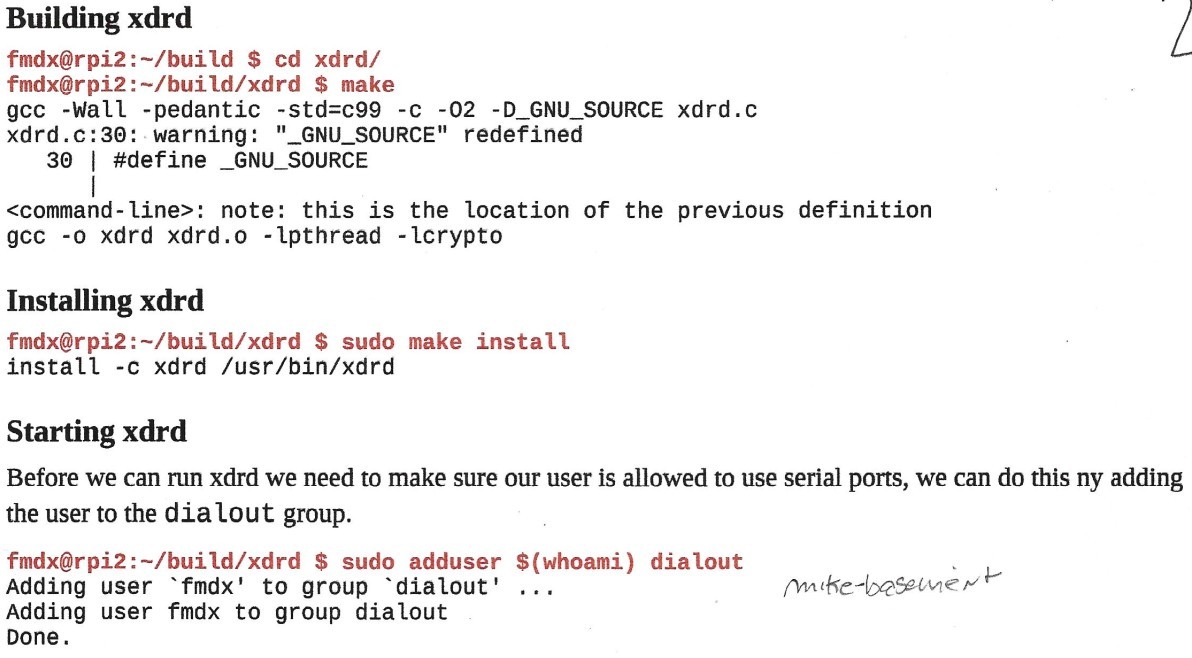

OK, so now we are done with that. Press CTRL-C a couple of times, and then type exit and get out of the terminal. Now you have the webserver software sitting in a directory called build in your home directory.
Now we need to start this webserver. Use your terminal. Type the following, one line at a time…
cd
ls
cd build
ls
cd fm-dx-webserver
Now that you’re now in the fm-dx-webserver directory, type node . (node, space, period). The webserver should start.
You still need to set up the admin section of the webserver, so, in the address bar of your web browser, type 192.168.xx.xxx:8080. (this is the IP address of the computer hosting the webserver. This gets you into the admin section where you can make all kinds of configuration changes, from the color of the interface, user management, etc. It’s also here where you can get yourself on the webservers map.
Notes: You can just listen to your radio on a device in your own network. You don’t need to stream it to the world. Just type the IP of the computer that has the webserver software on it and add :8080.
To update your webserver software, just open your terminal and go into your fm-dx-webserver folder and type: git pull.
Disclaimer: The last time I did this was well over a year ago so I am relying on my notes for most of this. There might be mistakes. If you have trouble, visit Github or ask at fmdx.org server on Discord. Good luck!